User Management
The SK-VPN supports user management via the REST API and CLI. The users created can login using a username + password via the CLI or the REST API.
Users may be non-administrators or administrators where administrators can add and remove other users and perform all other tasks in the SK-VPN. Non-administrators can only perform basic statistics monitoring and user management for their own account. Passwords must be 14 characters or more and meet the minimum complexity requirements.
Multi-Factor Authentication can be enabled for any user account. The system security policy can be set to enfoce MFA by all users.
Adding an Initial User
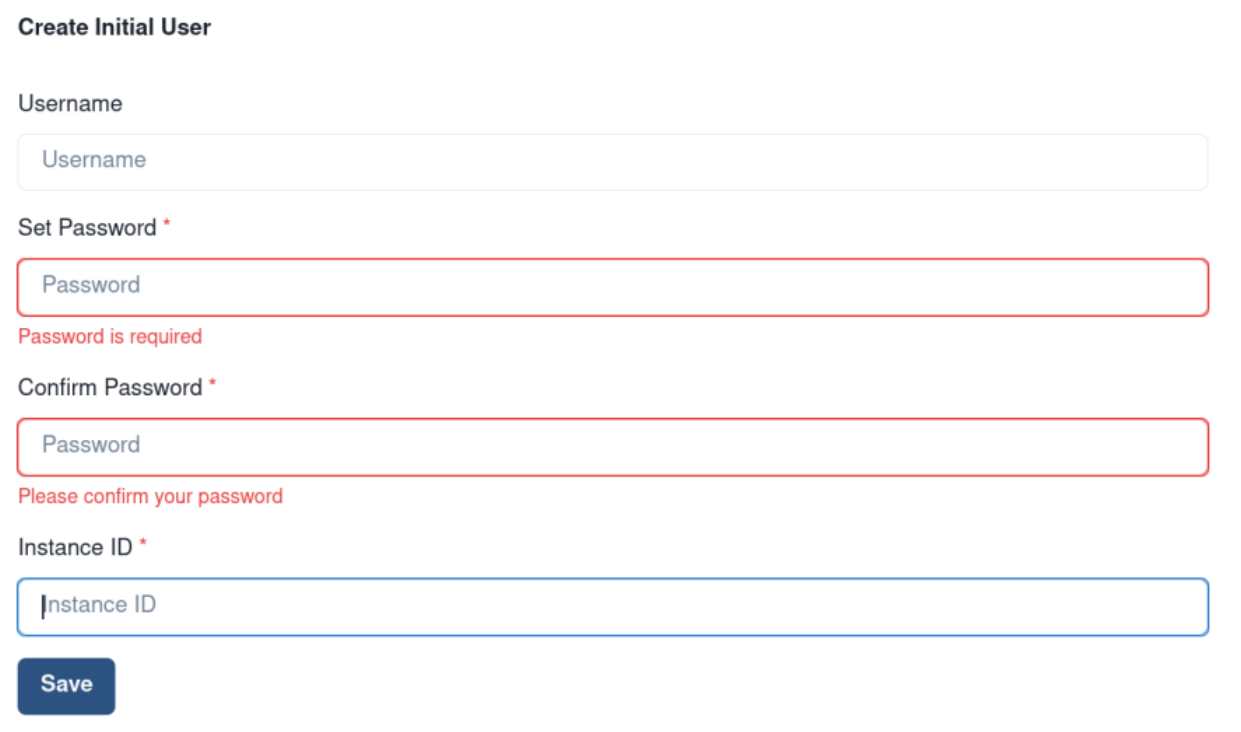
The SK-VPN requires an initial user to be setup before any other functionality can be enabled. The initial user must be an administrator and should be set following the instructions below. The REST API and CLI both support creation of the initial user. Initial User Creation is a one time process and must be completed before any other functionality is enabled.
From v2.3+ the initial user creation requires supplying the Instance ID. This secures the initial user creation process as Instance ID is known only to the VM owner.
From the Web UI:
To create the initial user, enter at least one character in the username and password fields then select ‘login’ - the values used for this do not matter since there are no users yet. Enter the details for the initial user as below:
From the REST API:
Use the
users/initialendpoint to create an initial userThis user is an administrator and these credentials should be used to add other users.
Login with the username and password using the
/auth/tokenendpoint.
From the CLI:
If an initial user does not exist the CLI will prompt for creation of an initial user.
Provide the username and password for the initial administrator.
Login with the username and password.
User Management
The Web UI allows administrators to manage users and user account settings.
Access User Management from the System -> Users page:

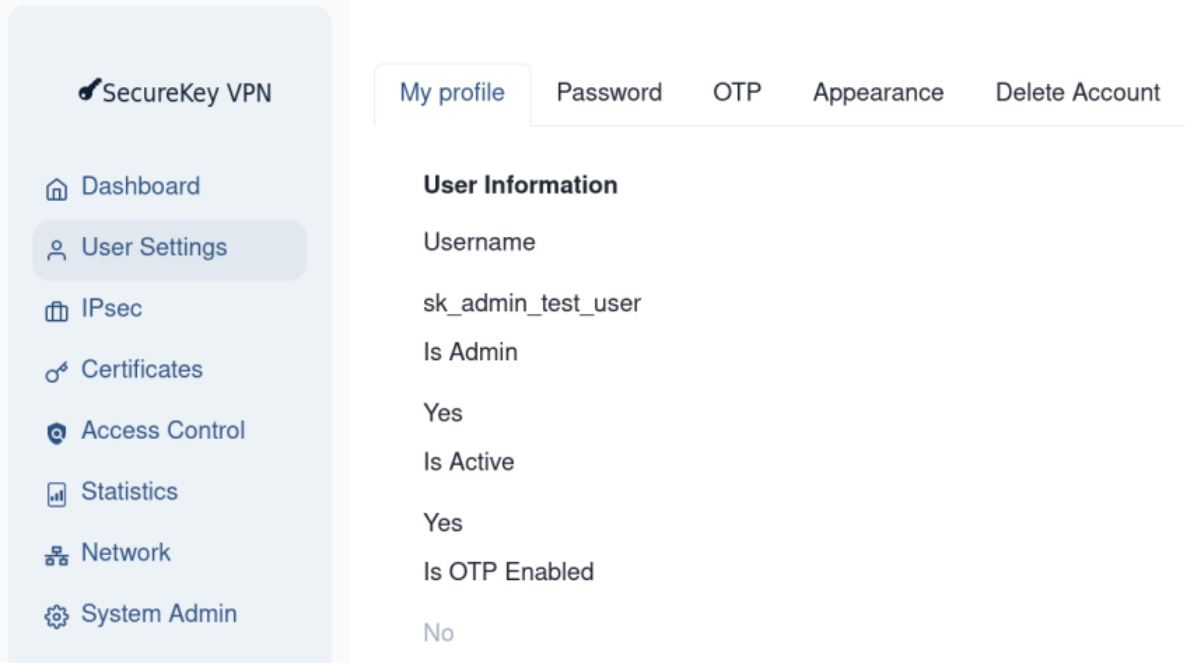
User Settings including Profile, Password Changes, and OTP settings are available in the User Settings page:
Adding Users
From the REST API:
Login with an administrator user.
Use the
users/registerendpoint to create an new user.Provide the username and password and the desired role.
From the CLI:
Login with an administrator user.
Use the
add_usercommand to create an new user.Provide the username and password and the desired role.
Change User Password
From the REST API:
Login with as a user.
Use the
users/change-passwordendpoint to change the password for the current user.Provide the current username and password and the new password.
From the CLI:
Login as a user.
Use the
change_passwordcommand to change the password for the current user.Provide the current username and password and the new password.
Removing Users
From the REST API:
Login with an administrator user.
DELETE
users/[username]
From the CLI:
Login with an administrator user.
Use the
add_usercommand to create an new user.Provide the username and password and the desired role.
Enable Multi-Factor Authentication
SK-VPN supports Multi-Factor Authentication (MFA) for users via Timebased One-Time Password (TOTP). The REST API and CLI can generate QRCodes which can be imported into Duo Security, Google Authenticator and other MFA applications. Once enabled, users will be required to provide an OTP on login.
Web UI OTP settings are available in the User Settings -> OTP page:

From the REST API:
Sign in with your Username and Password.
Use the
auth/otp/generate-qrcodeendpoint to generate a QRCode.Use Duo Security or Google Authenticator to scan the QRCode.
To enable OTP for your user, use the
auth/otp/enableendpoint.Re-login and provide the OTP in the auth/token “client_secret” field .
From the CLI:
Sign in with your Username and Password.
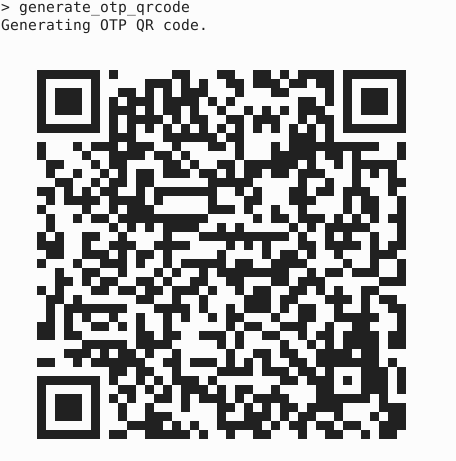
Generate a QRCode by running the following command:
generate_otp_qrcodeUse Duo Security or Google Authenticator to scan the QRCode.
To enable OTP for your user, run the following command:
enable_otpLogout and re-login now with MFA enabled an OTP will be required on login.
SSH User Management
SSH users can be added allowing for SSH access to the SK-VPN.
From the Web UI:
System -> SSH Users allows administrators to manage SSH users.
From the REST API:
Login with an administrator user.
To add a new SSH user: POST name and public_key to the
users/sshendpoint.To delete an SSH user: DELETE
users/ssh/[username]endpoint.To get all current SSH users: Get
users/ssh/allendpoint.
Note
SSH users are independent from the password based username(s) that are used to login to the CLI and REST API.
SSH users access the command line interface via SSH with the ssh -i [keyfile] [ssh_user]@[hostname] command.
Once the SSH user is authenticated (using SSH public key authentication), the user must login via the CLI using a username + password (+ MFA if enabled). see User Management.
It is possible to use the same username for SSH and CLI/REST API but it is not required.
Next Steps: Configure System Security see Security Configuration