IPsec Setup
Setup IPsec Certificates
The SK-VPN supports certificate based IKEv2 Security Associations.
The SK-VPN Web UI Certificates page is used to install and manage IPsec certificates:
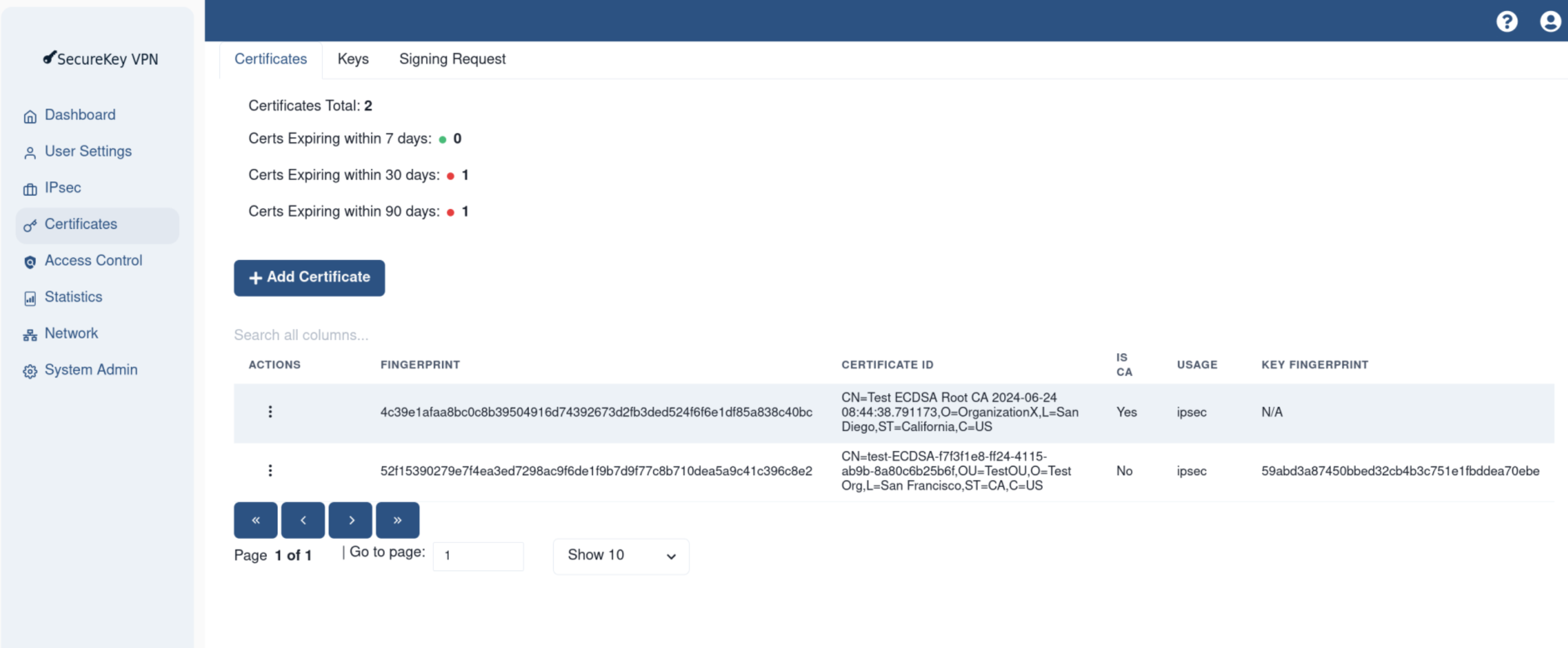
To setup IKEv2 Certificates using the REST API:
(Pre) Generate a CA Root Certificate and Private Key pair which will be used to sign the device Certificate. see Example CA Certificate Generation
Export a Certificate Signing Request: POST
/cert/signing-requestsee Certificate Signing Request (CSR)Sign the CSR with the CA Root Private Key see Example Certificate Signing.
Upload the signed certificate to the SK-VPN via the POST
/cert/signed_csrendpoint with the usage field set to IPSECVerify the Certificate detials using the GET
/cert/certsand/cert/details
IPsec Connections
An IPsec Connection is a set of parameters to define an IKE (phase 1) connection and a set of (phase 2) Child Security Associations. The SK-VPN supports IKEv2 Certificate-based authentication only (no Pre-Shared Key PSK support due to the lack of key security).
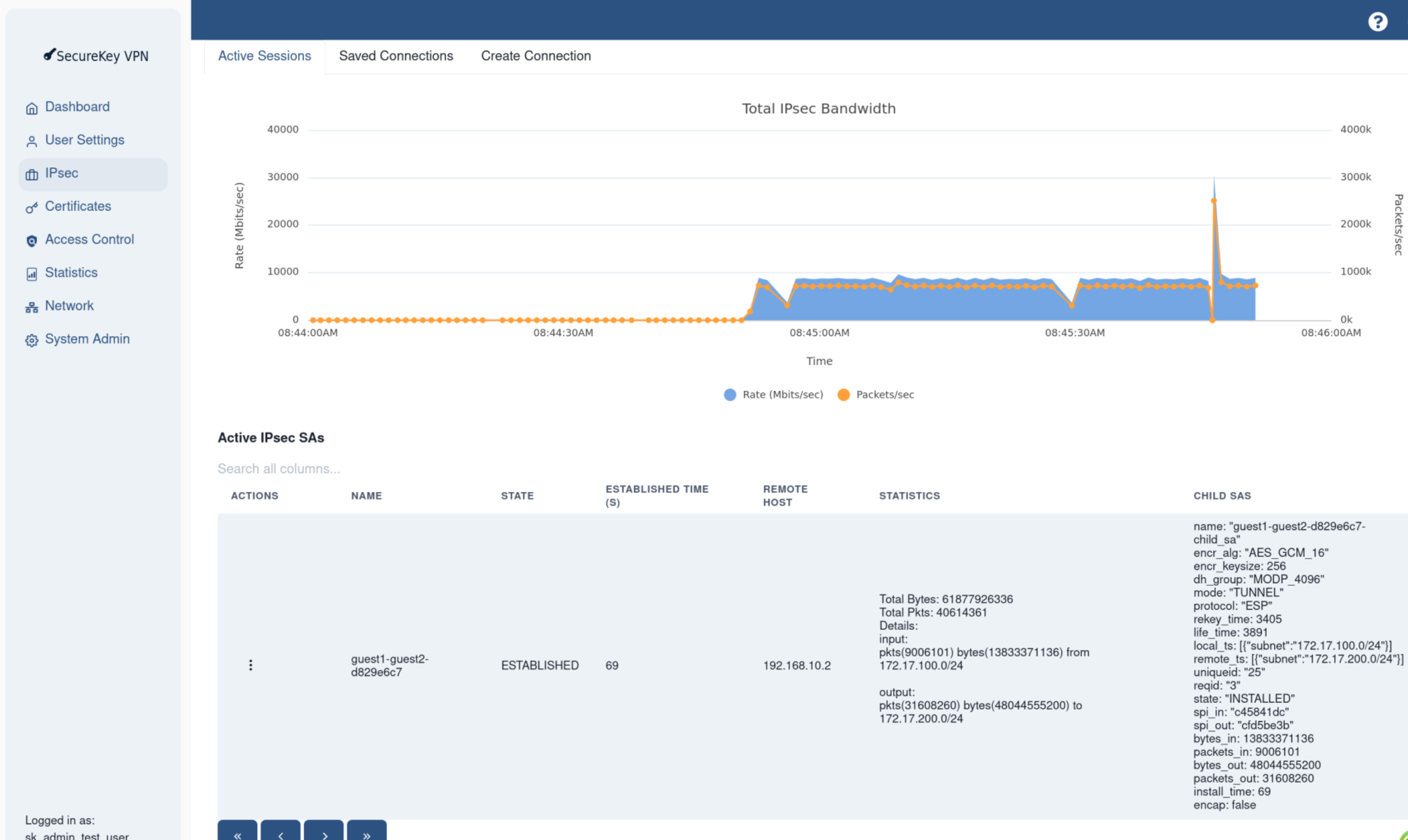
The SK-VPN requires a user to upload then activate the connection, activation loads the connection into the dataplane. Details of the active (loaded) connections along with the details of the child SAs are available via the REST API and the Web UI.
Active Connections and Connection Details and Statistics are available on the Web UI IPsec -> Active Sessions page:
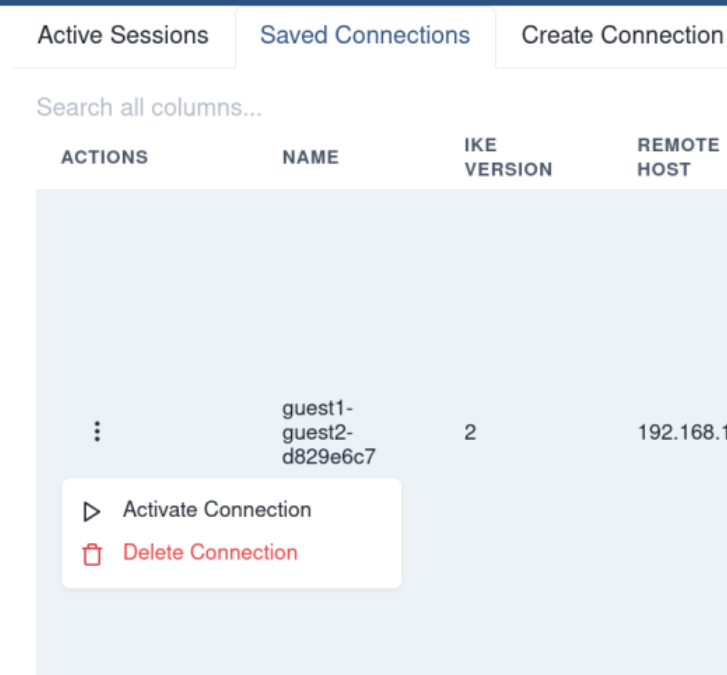
Connections can be created, modified, deleted and activated using the Web UI IPsec -> Saved Connections page:
IPsec Connections are managed using the REST API:
Upload a new connection: POST
/ipsec/connectionsActivate a connection: POST
/ipsec/connections/loaded/<name>Deactivate a connection: DELETE
/ipsec/connections/loaded/<name>Get the list of saved connections: GET
/ipsec/connections/savedGet the list of active connections: GET
/ipsec/connections/loadedDelete a connection: DELETE
/ipsec/connections
IPsec Security Associations
IPsec Connections define a set of Security Associations (SAs) that will be installed on the SK-VPN. IPsec ESP Tunnel Mode is used by default.
Each Security Association defines a secure tunnel between the SK-VPN and a remote peer.
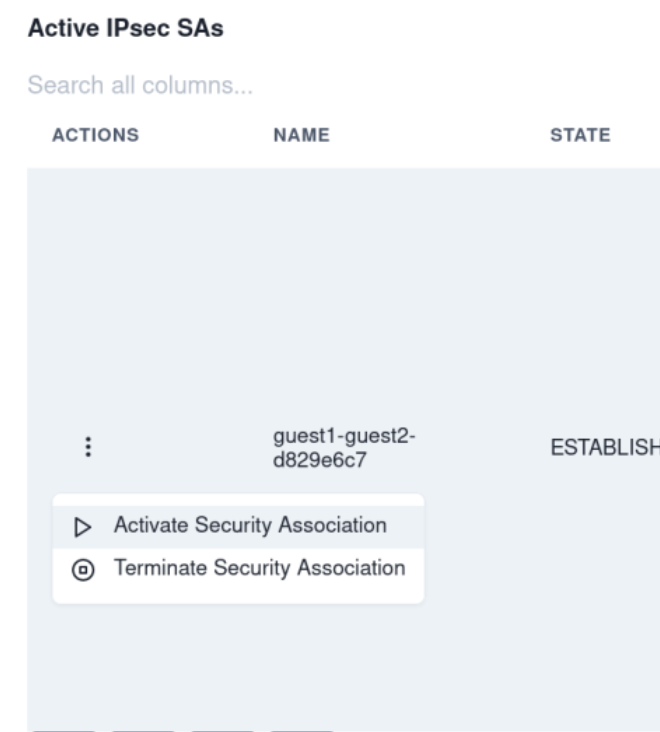
Active SAs are managed using the Web UI IPsec -> Active Sessions page and selecting the Actions Menu item for the Active SA to activate or terminate:
Security Associations are managed using the REST API.
Get the list of active SAs: GET
/ipsec/sasForce Initiation of an SA: POST
/ipsec/sas/initiate-childForce Termination of an SA: POST
/ipsec/sas/terminate-childGet list of a Connection’s SAs: GET
/ipsec/connectionsuse the children field for the list of SAs
Post Quantum Safe IPsec
SecureKey VPN supports both Postquantum Preshared Keys (PPK, RFC 8784) and Post Quantum Safe ML KEM (RFC 9370 and RFC 9242) for IKEv2 connections.
Post Quantum Safe PPKs
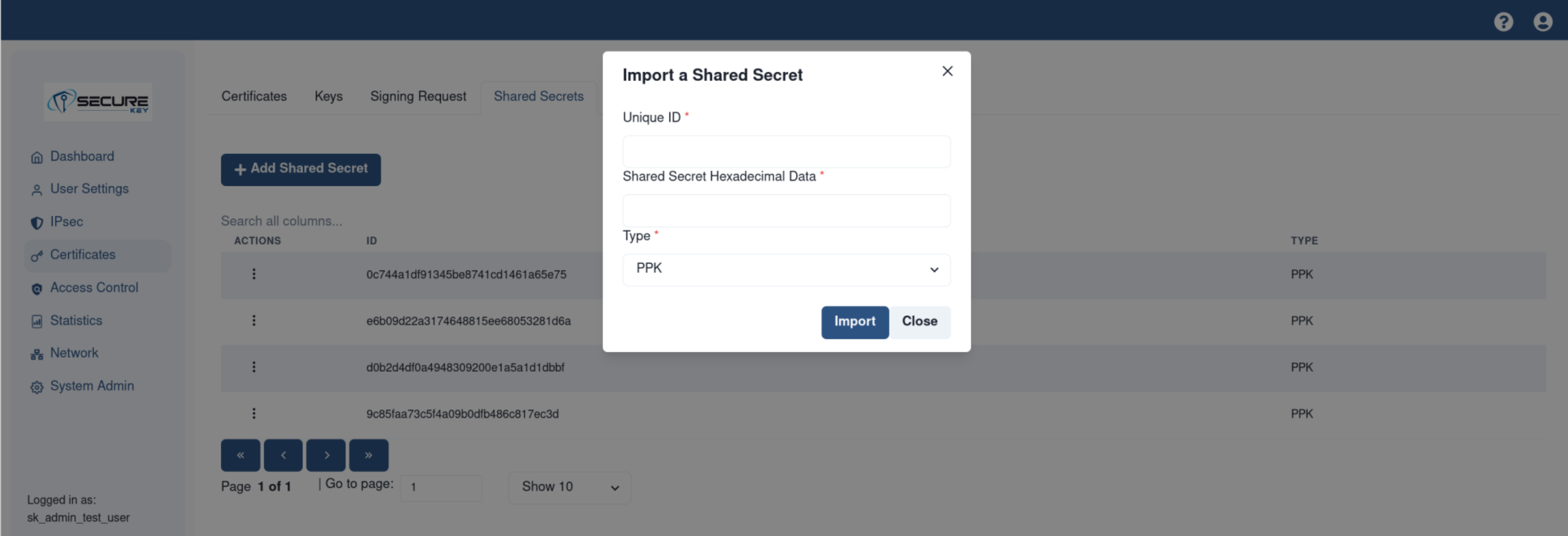
An IKEv2 PPK is configurable using the Web UI and REST API. First a shared secret (PPK) must be imported to the SK-VPN. This shared-secret is identified using a unqiue ID string supplied by the user. The data is supplied as a Hexadecimal String up to 32 bytes long (64 characters).
Once uploaded, a PPK can be used in an IKEv2 connection by selecting from the list of loaded PPKs. When the connection is activated, the SK-VPN will set the IKEv2 PPK and the SA status will indicate that PPK is in use. Note the peer must also support PPK and have the identical PPK ID and data set.
Using the REST API: POST /certs/shared_secret
Using the Web UI: Certificates -> Shared Secrets
Post Quantum Safe ML KEMs
IKEv2 ML KEM (RFC 9370 and RFC 9242) are supported.
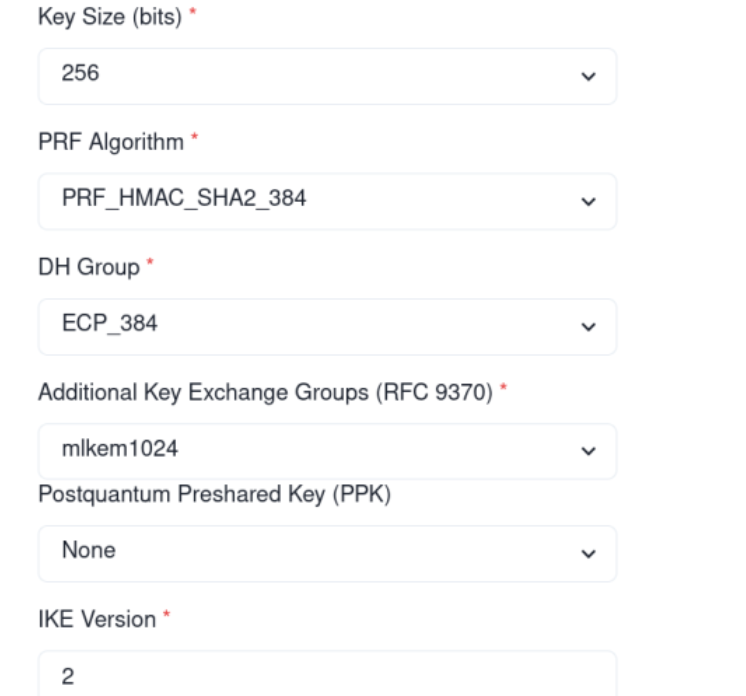
IKEv2 Connections can be configured with additional KEMs to support Post Quantum Safe Key Exchange. Currently MLKEM-1024 (Kyber1024) is the only CNSA v2.0 KEM.
To configure connections to use additional Post Quantum Key Exchange Methods, select “mlkem1024” from the list of available KEMs in the Web UI. Default is None. Note PPK can be used with additional Key Exchange Methods.
Next Steps
System Monitoring see System Monitoring